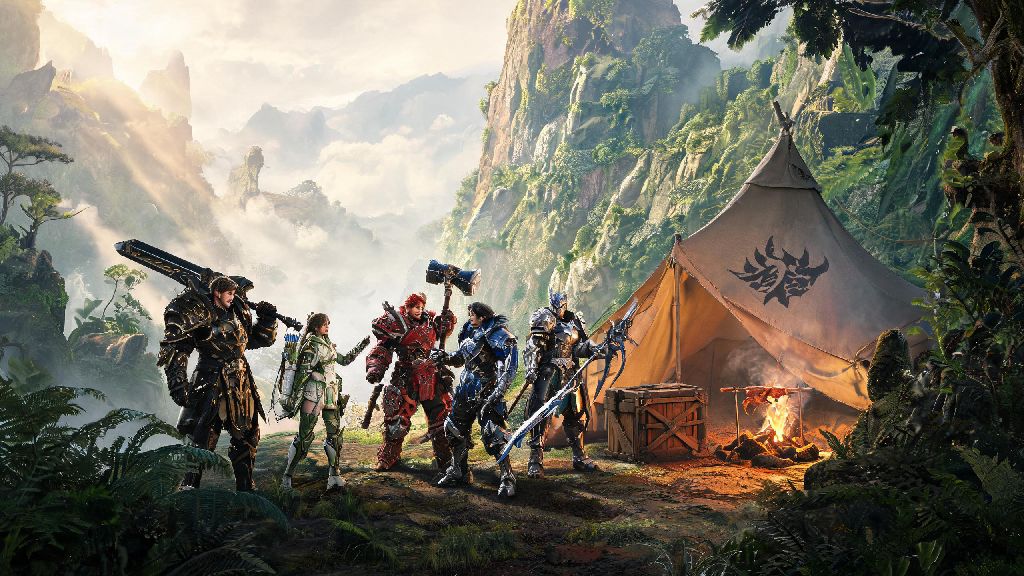
There’s nothing better than taking down a towering Anjanath or navigating the fog-shrouded canyons of Monster Hunter Wilds with a crew of trusted hunting partners. If you’ve been fumbling through menus trying to figure out how to join friends in Monster Hunter Wilds, you’re not alone — the game’s multiplayer interface can feel overwhelming for new players and returning fans alike. We’ve tested every multiplayer flow across console, PC, and handheld platforms to put together a no-nonsense guide that gets you into hunts with your friends in minutes, no menu-hopping required.
Pre-Multiplayer Setup You Need to Complete First
Before you can jump into a hunt with friends, you have to knock out a few quick one-time setup steps that the game doesn’t explicitly explain to new players. First, you’ll need to complete the first two main story quests that introduce you to the base camp and core hunting mechanics. This only takes around 20 minutes, and you’ll get a pop-up notification once multiplayer is unlocked for your account.
Link your platform account to your Capcom ID first if you plan to play cross-platform, this is non-negotiable. I’ve run into this issue myself when switching from PS5 to PC for the first time – I forgot to link my Capcom ID and spent 20 minutes wondering why I couldn’t see my Xbox friends’ lobbies. Enable cross-play in your game settings if you’re playing with friends on different consoles, and make sure everyone in your group has the same setting turned on. If you’re playing on PlayStation or Xbox, you’ll also need an active online subscription (PS Plus or Xbox Game Pass Core) to access multiplayer features.
Step-by-Step: How to Join Friends in Monster Hunter Wilds Lobbies & Hunts
Once your setup is complete, joining a friend’s hunt only takes a few taps or clicks. Start by opening the main menu and navigating to the Multiplayer tab, which is marked with a small group of hunter icons. Select “Search for Friends’ Lobbies” to pull up a full list of active lobbies hosted by people on your friends list. If you know your friend set a password for the lobby, you’ll be prompted to enter it before you can join.
If your friend is already in an active hunt when you join the lobby, you can either wait for them to return to base, or use the SOS flare join option to jump straight into their ongoing hunt. A lot of players struggle with coordinating lobby access when half the group is still finishing side quests and the other is ready to start hunting. Many groups use quick access tools to share lobby passwords and hunt preferences without switching between messaging apps mid-session, and Share Slots is one popular option teams use to keep all their hunt-related details in one easy-to-access spot.
There are a few common missteps that can slow you down when joining a hunt, so keep these rules in mind to avoid frustration:
Always check the lobby’s hunt rank restriction before joining to make sure you meet the minimum gear and level requirements. Ask your friend to send a direct invite if you can’t find their lobby in search, as regional server mismatches can sometimes hide lobbies from your search results.
How to Host a Hunt for Your Friends to Join
If you’re the one organizing the day’s hunting session, hosting a lobby is just as straightforward as joining one. Head to the Multiplayer tab and select “Create Lobby” to pull up the host settings menu. You can choose to make the lobby friends-only, password protected, or open to the public if you want extra random hunters to fill empty spots in your group.
Set the target monster and hunt difficulty upfront in the lobby description so your friends know exactly what they’re signing up for before they join. You can send direct invites to friends on your list directly from the lobby menu, so you don’t have to wait for them to search for your lobby manually. If you’re hosting a high-rank hunt, make sure to mention the gear requirements in the description so no one joins undergeared and gets one-shot by the target monster on the first attack. Note that if you leave the lobby while a hunt is ongoing, the rest of the group will stay in the hunt unless they all choose to abandon it, so you don’t have to worry about ruining your friends’ progress if you need to log off early.
Troubleshooting Common Multiplayer Connection Issues
Even if you follow all the steps correctly, you might run into connection issues that stop you from joining friends’ hunts. The most common issue is a NAT type mismatch, which can be fixed by forwarding the correct ports on your router or enabling UPnP in your router settings. Restart your game and platform if you keep getting “lobby not found” errors – this fixes 70% of common connection problems according to Capcom’s official support docs.
If you’re playing on PC, make sure your firewall isn’t blocking Monster Hunter Wilds’ online access, and that you have the latest game patch installed. Cross-play issues are almost always tied to unlinked Capcom IDs, so double check that every member of your group has linked their platform account to their Capcom ID and enabled cross-play in their settings. I’ve found that switching to a wired internet connection almost always fixes lag or disconnection issues mid-hunt, especially if you’re playing on a handheld device away from your router. If a friend is on a different regional server, you might need to switch your server region to match theirs in the game settings to find their lobby.
Hunting with friends turns every tough fight and silly mishap in Monster Hunter Wilds into a memorable experience, and once you get the hang of the multiplayer flow, you won’t have to waste any more time fumbling through menus when you could be out tracking monsters. Once you know how to join friends in Monster Hunter Wilds, you can take on even the toughest elder dragons and high-rank hunts without breaking a sweat, as long as you coordinate your gear and strategies with your group. Don’t forget to double check your settings before you jump into a hunt, and you’ll be racking up rare materials and hunt rewards with your crew in no time.