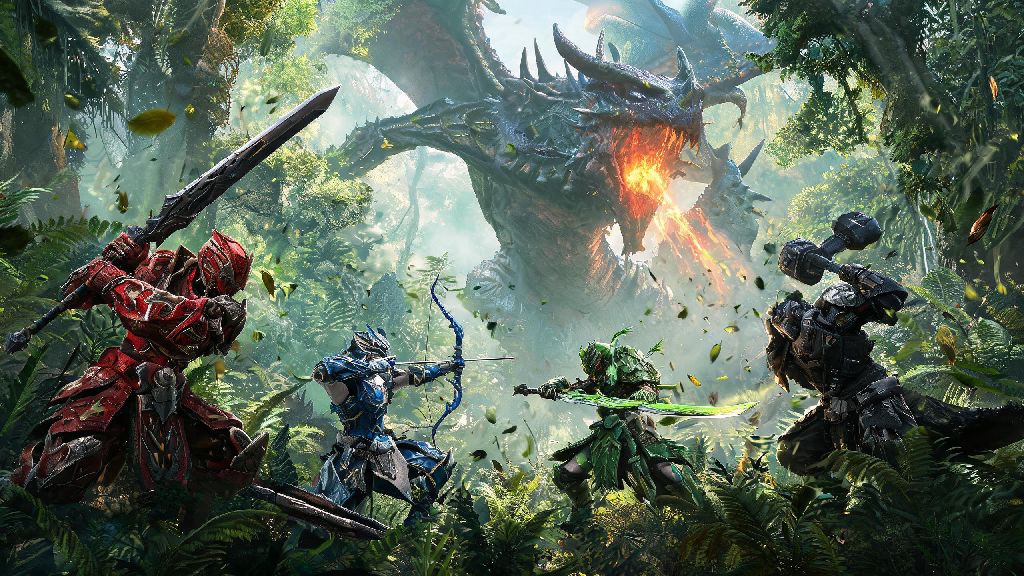
There’s no better feeling in Monster Hunter Wilds than taking down a towering elder dragon with a crew of your closest friends. Whether you’re new to the series or a veteran coming off World or Rise, multiplayer is where the game truly shines, with unique rewards and chaotic, memorable moments you won’t get hunting solo. If you’ve been fumbling through menus trying to figure out how to play with friends in Monster Hunter Wilds, we’ve got you covered with every step and tip you need to get your squad hunting together without hassle. We’ve tested every multiplayer setup across console and PC, so you won’t run into the same connection errors or lobby glitches we did during our first week of play.
How to Play With Friends in Monster Hunter Wilds: Initial Lobby Setup
First, you’ll need to unlock multiplayer functionality before you can invite anyone to your game. The multiplayer board won’t appear in your hub until you complete the first three introductory quests and set up your first forward camp in the starting grasslands biome, a step that takes roughly 20 minutes for most players. You won’t unlock multiplayer functionality until you complete the first three introductory quests and set up your first forward camp in the starting grasslands biome. Don’t waste time clicking around empty menus before you finish this opening section of the story.
Once you have access to the multiplayer board, you can choose to create a public or private lobby. Public lobbies let any random player join, which is great if you want to fill out your squad with extra hunters, but private lobbies are better for friend-only runs. When you create a private lobby, you’ll get the option to set a 4-digit passcode. Always set a 4-digit passcode for private lobbies to avoid random players joining when you’re trying to run squad-only hunts for specific materials. You can also set lobby filters for specific monster types, quest ranks, or playstyles, so if your group only wants to hunt fire element monsters for armor crafting, you can set that filter ahead of time to avoid accidental wrong quest queues.
If you’re playing across PC, PS5, or Xbox, double check that crossplay is enabled in your game settings before creating a lobby. Crossplay is turned on by default for most players, but if you turned it off accidentally to avoid random invites, your friends on other platforms won’t be able to see your lobby. The lobby host is the only one who can adjust lobby settings after creation, so make sure you have all your filters and passcode set before sending out invites.
Inviting Friends and Joining Existing Lobbies
There are three simple ways to get your friends into your lobby once it’s set up. The fastest is to use the in-game “Invite Friends” option on the lobby menu, which pulls up your platform’s native friend list so you can send invites in one click. If you’re playing on Steam, you can also use the Steam overlay to invite friends directly without opening the in-game menu, which saves a lot of time when you’re switching between lobbies quickly. For console players, you can pin your lobby to your platform’s groups so your friends can join directly from the group page without needing an invite or ID.
If invites aren’t working for any reason, you can send your friends the 8-digit lobby ID displayed in the top right corner of your screen. They can enter this ID on the multiplayer board under the “Search Lobby by ID” option to join instantly. Lobby IDs are case-insensitive, so you don't have to worry about capitalization when entering a friend's code. I wasted 10 minutes during my first co-op run retyping an ID over and over because I thought the letters were case-sensitive, so save yourself the frustration.
One thing to note: if a friend is a lower hunter rank than the quest you're trying to run, they won't be able to join unless you have a special join request permit, which you can unlock by completing 10 high-rank quests. That means you can't carry your brand new friend through endgame content right away, but you can run lower rank quests with them to help them level up faster. You can also join a friend’s hunt mid-progress if they haven’t already engaged the target monster, so you don’t have to wait for them to finish an entire quest to team up.
Best Practices for Smooth Friend Group Hunts
Once you're all in the same lobby, you can run any quest available to the host, as long as every player meets the minimum hunter rank requirement for the quest. But running a smooth hunt with friends takes a little more planning than hopping in and swinging your weapon wildly. Follow these tips to avoid wipes and farm materials far faster than you would solo:
You don't have to stick strictly to roles if you're just playing for fun, but if you're farming rare materials from endgame monsters, following this structure will cut your clear time in half most of the time. I've run the same endgame elder dragon hunt with randoms in 25 minutes, and with a coordinated friend group in 8 minutes, so the difference is night and day. You can share non-rare materials with friends in the lobby after a hunt, which is perfect for helping newer players craft their first high-rank armor sets without grinding the same quest 10 times.
If you’re playing with friends who are new to the Monster Hunter series, take a minute to walk them through basic mechanics like dodging and monster weak points before starting high-rank hunts. It’s way more fun to teach a friend how to time their attacks than to wipe three times in a row because they don’t know the monster’s attack pattern yet.
Fixing Common Multiplayer Issues With Friends
Even if you follow all the setup steps perfectly, you might run into connection issues now and then, especially during peak play times. The most common issue we see is the "lobby not found" error when trying to join a friend's game. First, try restarting your game and your platform's internet connection, then check that your NAT type is set to Open or Moderate, since Strict NAT types won't connect to most player lobbies. Most platforms let you check your NAT type in the network settings menu.
If you're getting constant disconnects mid-hunt, ask the host to check their internet upload speed, since the lobby runs off the host's connection. Upload speeds of at least 3 Mbps are recommended for hosting a 4-player lobby. If all else fails, try creating a new lobby instead of reusing the same one, since old lobbies can develop glitches after several hours of play.
Another common issue is players getting kicked from lobbies right before a quest starts. This usually happens if a player doesn’t have the required DLC or game update installed, so make sure everyone in your group has downloaded the latest patch before you start queuing for quests. Never close the game immediately if you disconnect mid-hunt – you have 3 minutes to rejoin the lobby and get back into the fight, keeping all your progress for that quest.
At the end of the day, figuring out how to play with friends in Monster Hunter Wilds is worth the small amount of menu hassle it takes to set up. You'll get access to exclusive multiplayer rewards, faster hunt clear times, and way more fun moments than you ever will hunting alone. Don't stress too much about perfect roles or optimal builds when you're first starting out – the best part of co-op is messing up and learning the game together with people you enjoy playing with. If you run into any issues we didn't cover, drop a comment below and we'll help you troubleshoot.