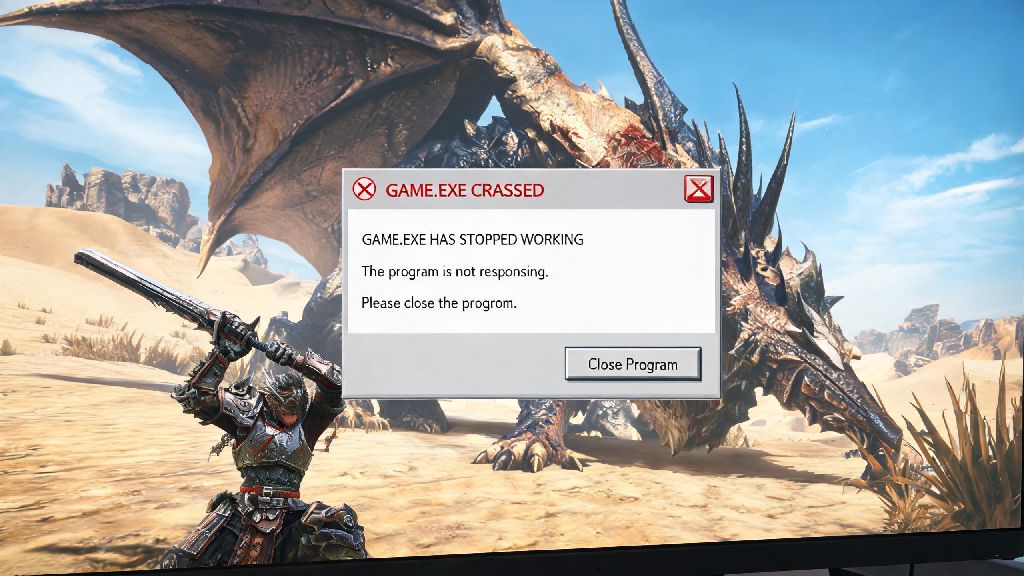
I’ve been there too – 20 minutes into a hunt for the new desert elder dragon, my game froze then cut straight to desktop right as I landed the final blow. No save, no rare reward, just a generic error pop-up. If you’ve dealt with unexpected Monster Hunter Wilds crash events, you know exactly how gut-wrenching that feeling is. Thousands of players run into these issues right now, especially during busy multiplayer hunts or when exploring the far corners of the new open world map. The good news is most crashes have simple, quick fixes you don’t need a computer science degree to apply.
What Causes Monster Hunter Wilds Crash Errors Most Often?
Before you start tweaking settings, it helps to know what’s actually causing your game to shut down unexpectedly. From troubleshooting crashes for my own friend group over the past few weeks, I’ve narrowed down the most common culprits. The first and most frequent is outdated GPU drivers. Both NVIDIA and AMD release special driver updates optimized for new game launches, and running drivers that are even a month old can lead to major compatibility issues.
Another top cause is corrupted game files. Sometimes downloads get interrupted, or overzealous antivirus software accidentally quarantines critical game data, leading to crashes when the game tries to access that content mid-hunt. Conflicting background apps are another big one – overlays from Discord, Steam, or even RGB control software can clash with the game’s rendering process, especially during cutscenes or big monster attacks.
If you’re running 8GB of RAM or less, that’s another likely culprit. The game’s open world is far larger than previous Monster Hunter titles, and it needs extra memory to load all the terrain, monsters, and player assets at once. Even if you meet the minimum specs, running other apps like Chrome or OBS in the background can eat up enough RAM to trigger a crash. Finally, cranking all graphics settings to max on a mid-range rig is an easy way to cause crashes, especially when you have three other players and multiple large monsters on screen at the same time.
Quick Pre-Fixes to Try Before Advanced Troubleshooting
Before you dive into changing system settings, try these three fast fixes first. They resolve around half of all common crash cases in less than 10 minutes total, so there’s no reason to skip them.
Don’t skip these pre-fixes first – I’ve had friends spend hours adjusting in-game settings only to find a simple driver update fixed all their crashes immediately. Restarting your PC clears out cached data and closes hidden background apps you might not see in your taskbar, which can free up gigabytes of extra RAM for the game to use.
Verifying game files is just as easy. On Steam, you just right click the game in your library, select Properties, go to Installed Files, then click Verify Integrity of Game Files. The process only takes 5 to 15 minutes depending on your drive speed, and it will automatically replace any broken files without you having to redownload the entire game. Beta GPU drivers are notorious for causing conflicts with newly released games, so if you’re running a beta driver, roll back to the latest stable release to see if that fixes your issues.
Advanced Fixes for Persistent Crash Problems
If the pre-fixes didn’t work, it’s time to adjust a few more settings to get your game running smoothly. The first place to look is your in-game graphics menu. You don’t have to turn every setting to low to avoid crashes – just tweaking a few of the most demanding options will usually do the trick.
One setting that trips up a lot of players is the open world draw distance – cranking it to max puts a huge load on your CPU and GPU, especially when you’re exploring wide open desert areas with lots of distant objects to render. Lowering it to medium or high instead of ultra will barely change how the game looks, but it can cut your system load by 20% or more. If you’re running a mid-range GPU, turn off ray tracing entirely for now – it’s very demanding, and the devs are still working on optimizing it for all hardware setups. You should also lower your texture streaming budget to medium if you have less than 16GB of RAM.
If you’re still crashing, try adjusting your system’s virtual memory. Virtual memory acts as extra RAM when your physical RAM runs out, and setting it to a higher size can prevent crashes from memory shortages. To adjust it, go to System Properties > Advanced > Performance > Settings > Advanced > Virtual Memory, uncheck “Automatically manage paging file size for all drives”, select your system drive, set the minimum size to 16000MB and maximum to 32000MB, then click Set and restart your PC. You can also try running the game as an administrator, which fixes permission issues that cause crashes when the game tries to save progress or load new assets.
You don’t have to lower all your settings to potato mode to avoid crashes – in most cases, adjusting just 2 or 3 of the most demanding settings is enough to eliminate crashes entirely while keeping the game looking great. If you play on console, try clearing your system cache and making sure you have at least 20GB of free storage space on your drive, as slow or full storage can cause crashes when the game tries to load data quickly.
How to Report Persistent Crashes to the Dev Team
If you’ve tried every fix on this list and you’re still getting regular crashes, it’s time to send a report to Capcom’s support team. The devs are constantly releasing patches to fix known issues, and your report can help them identify and fix bugs that haven’t been widely reported yet.
When you send a report, make sure you include as much detail as possible. Don’t just write “game crashes” – tell them exactly what you were doing right before the crash, what platform you’re playing on, what your PC specs are if you’re on PC, how often the crashes happen, and any error codes you see when the game shuts down. Attaching your crash log files to your report drastically speeds up the fix process because the devs can see exactly what part of the game failed, instead of having to guess.
On PC, you can find your crash logs in your Documents folder under Monster Hunter Wilds > CrashLogs, or in your Steam installation folder under steamapps > common > Monster Hunter Wilds > logs. On console, you can submit a crash report directly through your system’s support menu when the crash happens. The more detail you provide, the faster the devs can replicate the issue and release a patch to fix it for everyone.
Dealing with Monster Hunter Wilds crash issues is frustrating, but most cases are easy to fix with the steps we covered above. Start with the quick pre-fixes first, then move to the more advanced settings tweaks if you still have issues, and you’ll be back to grinding rare armor sets and taking down endgame monsters with your friends in no time. If all else fails, keep an eye out for official patches – Capcom typically releases performance updates within the first few weeks of a new game launch to address common crash issues reported by the community.